
OV-TOOLS-BOM-TOOL · v0.4 · 2026-09-10Download PDF
| Doctype | Tool Manual |
|---|---|
| Doc id | OV-TOOLS-BOM-TOOL |
| Product line | openvvvf |
| Applies to | openvvvf-control-module, chassis-size-2 |
| Version | 0.4 |
| Date | 2026-09-10 |
| Description | Vendor order BOMs (Mouser, McMaster-Carr, SendCutSend, PCB, 3D Printed; DigiKey when data exists) per chassis, revision, and build variant. |
| Nav order | 603 |
| Normative refs | OV-TOOLS-INDEX |
BOM Tool
The BOM Tool serves the per-chassis vendor order BOMs exported from the hardware repository's release tags. Select a chassis, revision, and build variant, then preview or download the vendor BOM you need.
Using the tool
- Open the BOM Tool.
- Choose the chassis, revision, and variant (
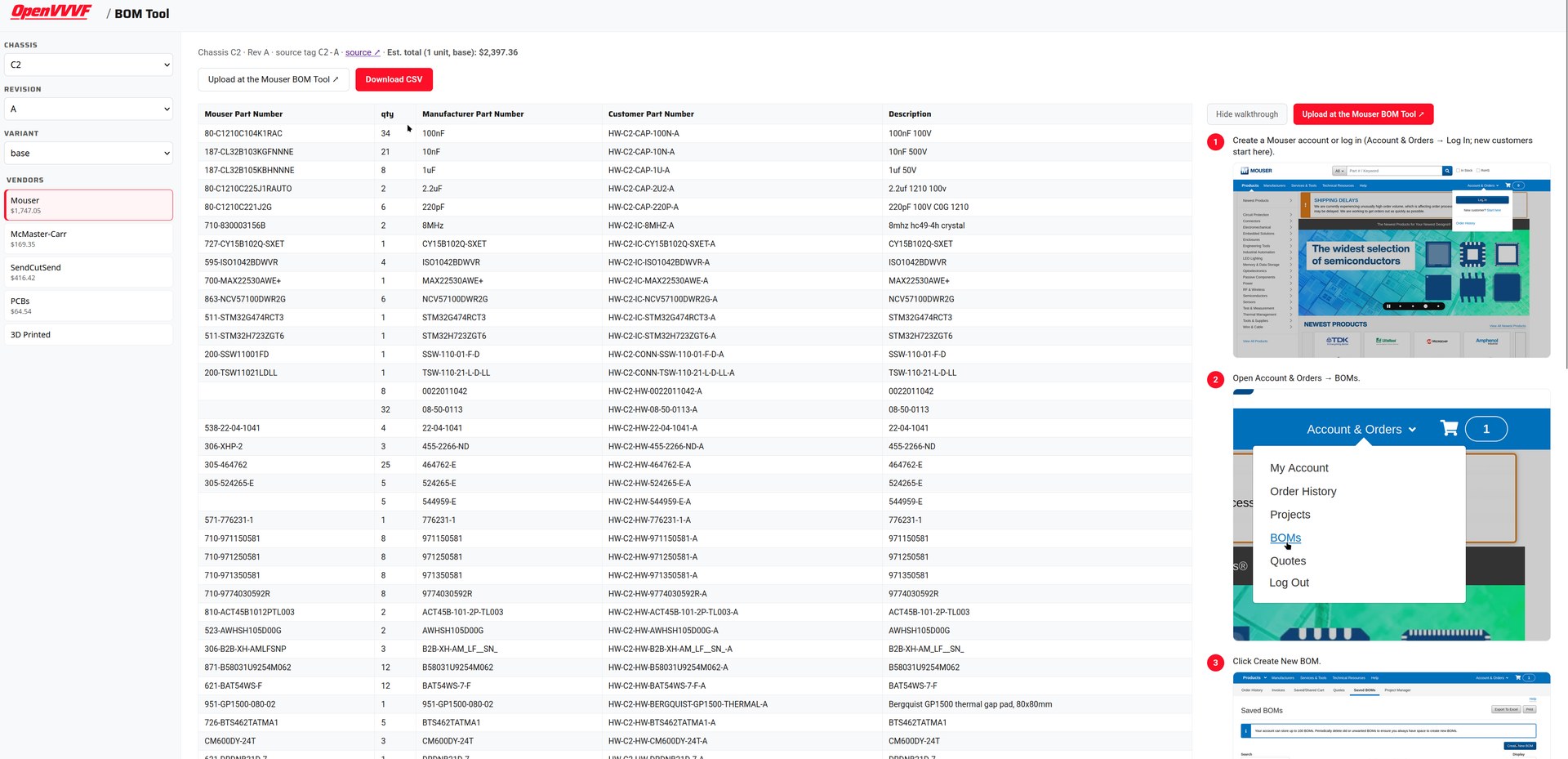
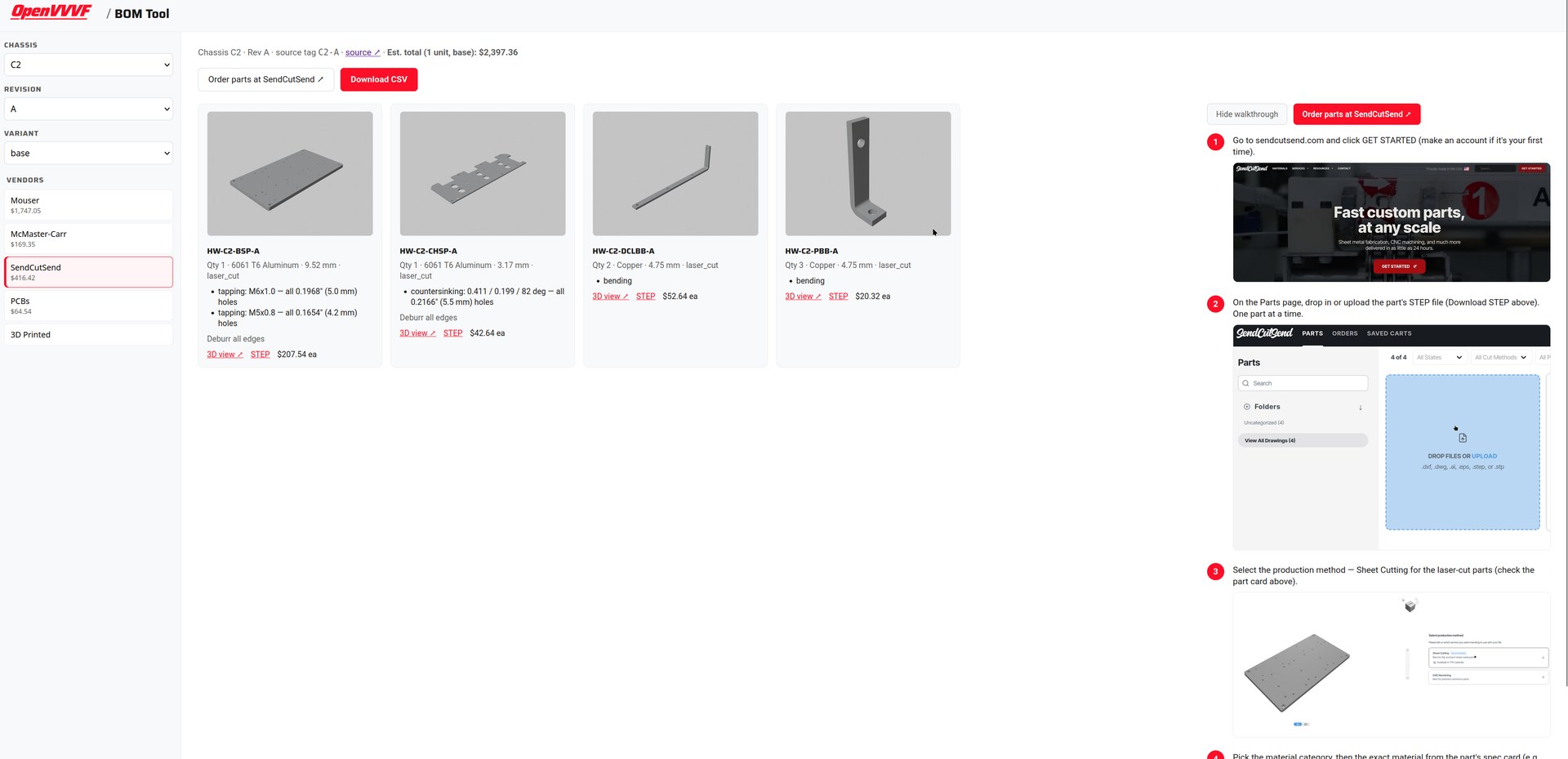
baseis the standard build; named variants such asgenerouscome from the hardware repo's BOM variants). - Click a vendor button (Mouser, McMaster-Carr, SendCutSend, PCBs (JLCPCB fab), 3D Printed (printed parts); a DigiKey button appears only when DigiKey data exists for that release) to preview the BOM inline. Vendor buttons show their share of the cost estimate. The consolidated and assembly (in-house harnesses) BOMs have no buttons; download their CSVs from the release's
BOMs/directory. - Order with as few clicks as vendors allow. For the selected chassis+revision the actions row may show ready-made shared carts ("Open ready-made Mouser/SendCutSend cart", "Open shared DigiKey list" — buy as-is). For Mouser, Copy order list copies
Mouser PN<tab>qtylines and opens the BOM import; paste there (Account & Orders → Import). For McMaster-Carr, Copy order paste copiesPN,qtylines for the order pad, and Open McMaster-Carr order page jumps straight to it. The subassembly view (step 5) has equivalent copy buttons limited to that subassembly's lines; entries without a vendor part number are skipped. - To price one part of the inverter on its own (e.g. just the control board or the wiring harnesses), pick it in the Subassembly selector between the variant selector and the vendor buttons. The preview then shows that subassembly's lines with per-vendor subtotals instead of a vendor table. These totals assume you order only that subassembly — pack sizes are rounded up separately per subassembly, so the subassemblies can add up to more than the whole-BOM estimate. Clicking a vendor returns to the whole-BOM view. Releases exported before this feature have no per-subassembly data yet; the selector shows a disabled "All (no per-subassembly data yet)" entry until the next
hwrelease update. - Use Download CSV to save it for ordering (e.g. pasting into the vendor's BOM import). For boards, View boards in PCB Tool takes you to the per-board gerbers/specs, and Order PCBs at JLCPCB opens the fab.
Ordering walkthrough screenshots
When a vendor is selected, the tool shows a step-by-step walkthrough of that vendor's upload/ordering flow below the buttons (for McMaster-Carr there's also a button that copies the order paste to the clipboard). The walkthrough is hand-maintained: drop files next to this document named ordering-<vendor>-<n>.png (screenshot) and ordering-<vendor>-<n>.txt (one-line caption), numbered in order (n = 1, 2, …; vendors: mouser, digikey, mcmaster, sendcutsend, jlc). Either file may exist alone: steps without a screenshot show as text only. No regeneration is needed; they are picked up on the next site build.
The estimate in the header reflects the selected variant (base, standard, generous).
Registering ready-made shared carts (maintainer)
None of the vendors offer anonymous cart URLs, so shared carts are created once by the maintainer in their vendor account and registered in shared-carts.json, a hand-edited file next to this page (it is not generated; hwrelease build-viewer never touches it):
{ "C2": { "C": { "mouser": "https://...", "sendcutsend": "https://...", "digikey": "https://..." } } }
Keys are "<chassis-short>" → "<rev>" → vendor → URL; vendors without an entry simply show no button, and a missing shared-carts.json is fine.
- Mouser: build the BOM in a My Mouser project (Project Manager), use Share, and copy the
ProjectDetail.aspx?AccessID=…link. Visitors open it and click "Order Project" — this keeps project ownership/annotations with the maintainer. - SendCutSend: load a saved cart, use the cart's share link (
https://cart.sendcutsend.com/<id>). Caveats: links expire after ~30 days (or on cart/account changes), and CNC-machined parts can't be shared. - DigiKey: share a list from the DigiKey lists page. (Not currently used — this project's BOMs carry almost no DigiKey part numbers.)
Where the data comes from
The CSVs are regenerated from the tag's KiCad sources on every export: HWRelease (make hw-update) runs BOMManager's generate (with pricing) against the exported tag tree, so they can never go stale. They live in Data/Releases/<chassis>/<rev>/BOMs/ and are indexed in Data/Releases/manifest.json under CHASSIS-<chassis>-<rev> entries. The page itself is regenerated with hwrelease build-viewer (runs automatically after update).